Mobile
Open https://yep.com and run a search.
Tap the menu icon in the top right and then Settings › Search engine.
Select Yep in the “Recently visited” section.
Desktop
Enter chrome://settings/searchEngines in the address bar. Or, click the menu icon in top right corner and then Settings › Search engine.
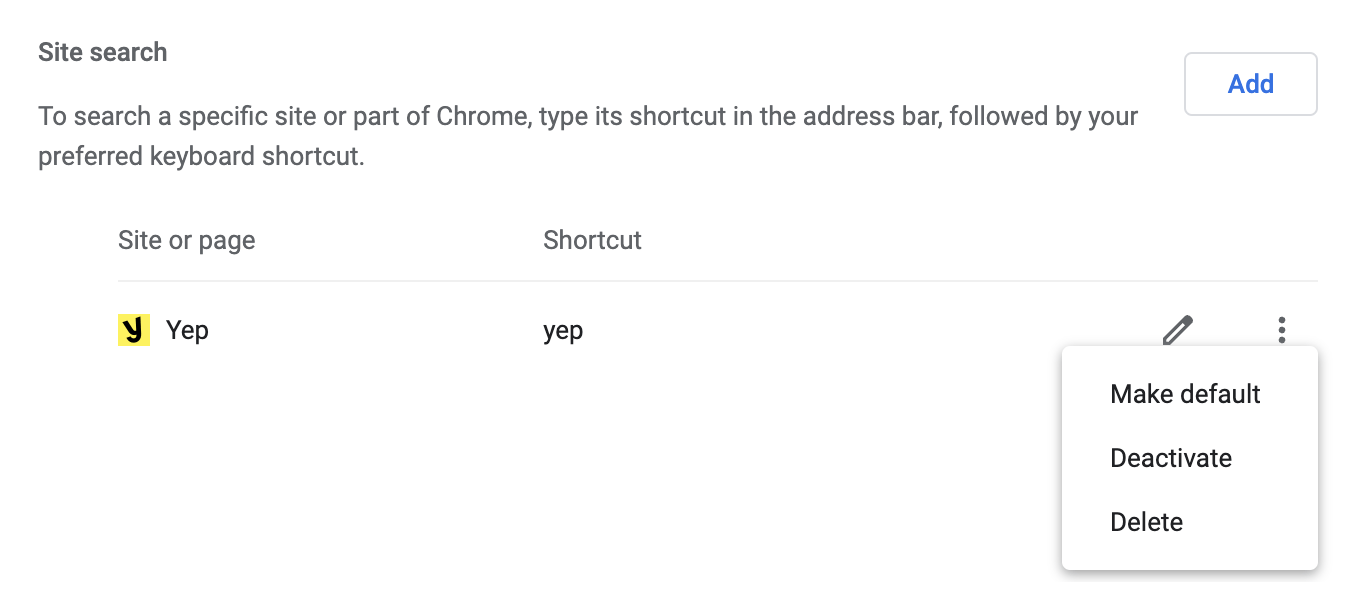
Click Manage search engines and site search and then Add under the “Site search” section.
- Fill out the following details in the form:
search engine: yep
Shortcut: yep
URL with %s in place of query: https://yep.com/web?q=%s
- Click the menu icon and then Make default.
Mobile
Open https://yep.com and run a search.
Tap the menu icon in the bottom and then Settings › General › Select search engine.
Select Yep in the “Recently visited” section.
Desktop
Enter chrome://settings/searchEngines in the address bar. Or, click the menu icon in top right corner and then Settings › Privacy, Search, and Services.
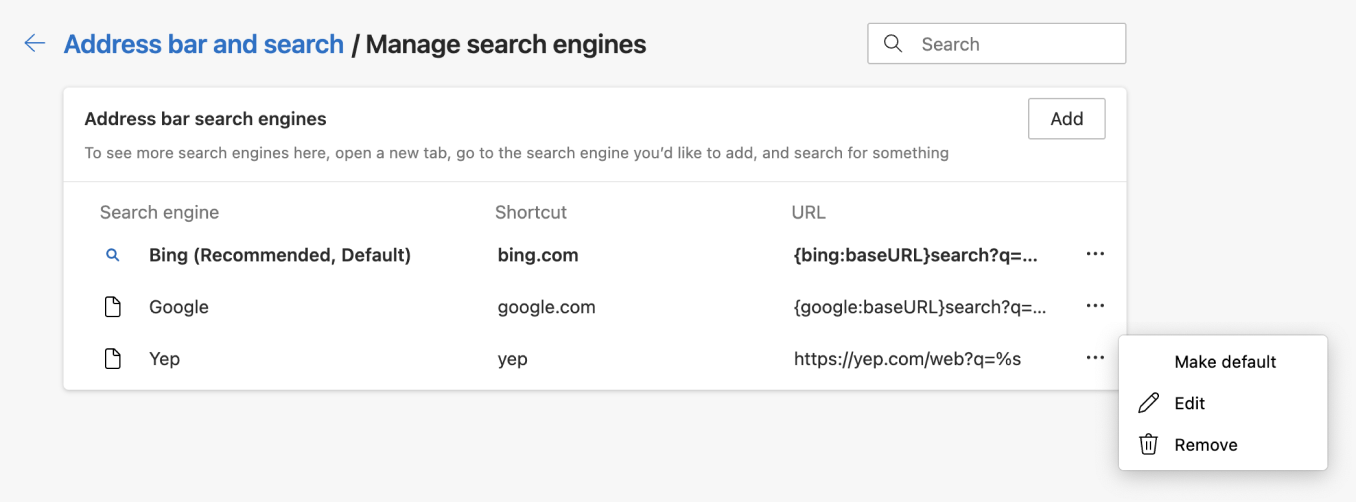
Find and click Address bar and search at the bottom of the page. Click Manage search engines and site search and then Add under the “Address bar search engines” section.
- Fill out the following details in the form:
Search engine: Yep
Shortcut: yep
URL with %s in place of query: https://yep.com/web?q=%s
- Click the menu icon and then Make default.
Mobile
Tap the menu icon in the bottom right and then Settings › Search.
Tap Add search engine and select Other.
- Fill out the following details in the form:
Name: yep
Search string to use: https://yep.com/web?q=%s
Select Yep as a default search engine.
Desktop
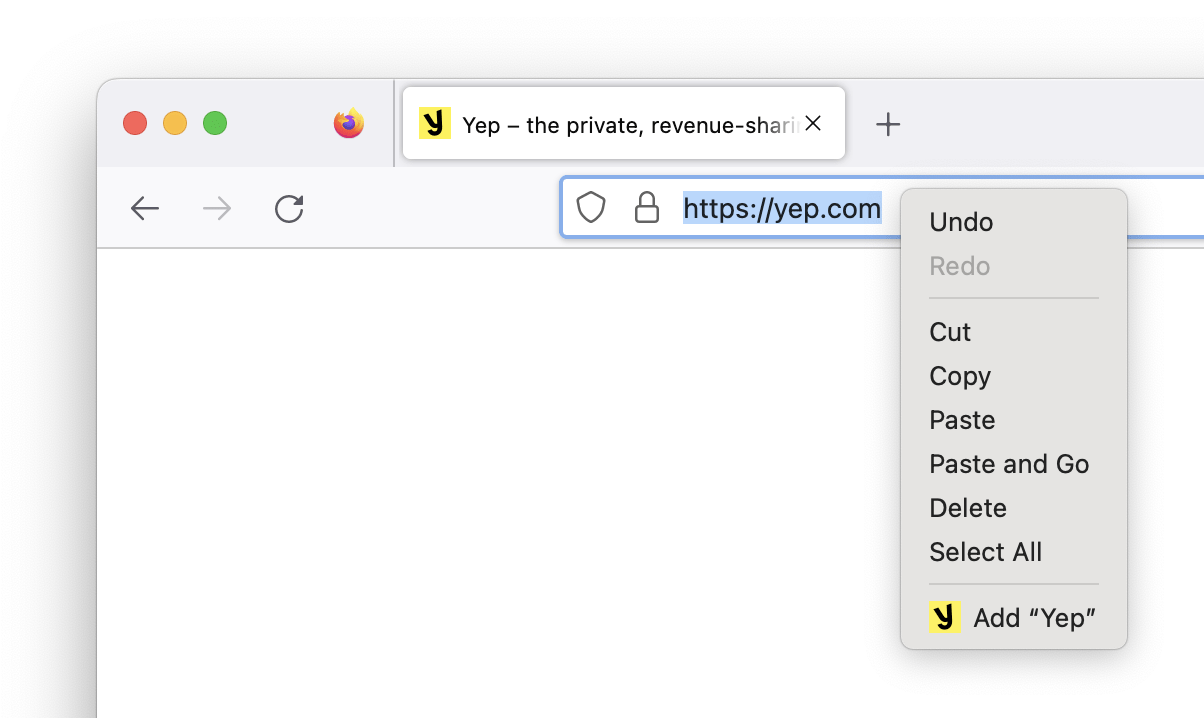
- Open https://yep.com/, right-click in the address bar and select Add “Yep”.
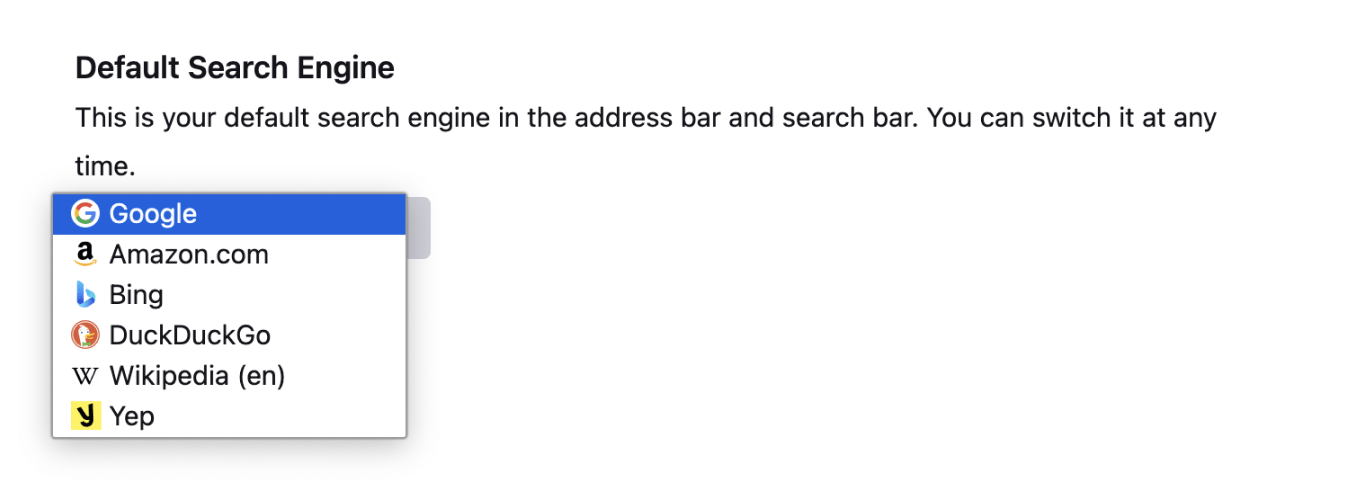
Enter about:preferences#search in the address bar. Or, click the menu icon in top right corner and then Settings › Search.
- Select Yep as a default search engine.
Mobile
Open https://yep.com and run a search.
tap the menu icon in the bottom and then settings › search engine.
Select Yep in the “Recently visited” section in Standard and Private tabs.
Desktop
Enter chrome://settings/searchEngines in the address bar. Or, click the menu icon in top right corner and then Settings › Search engine.
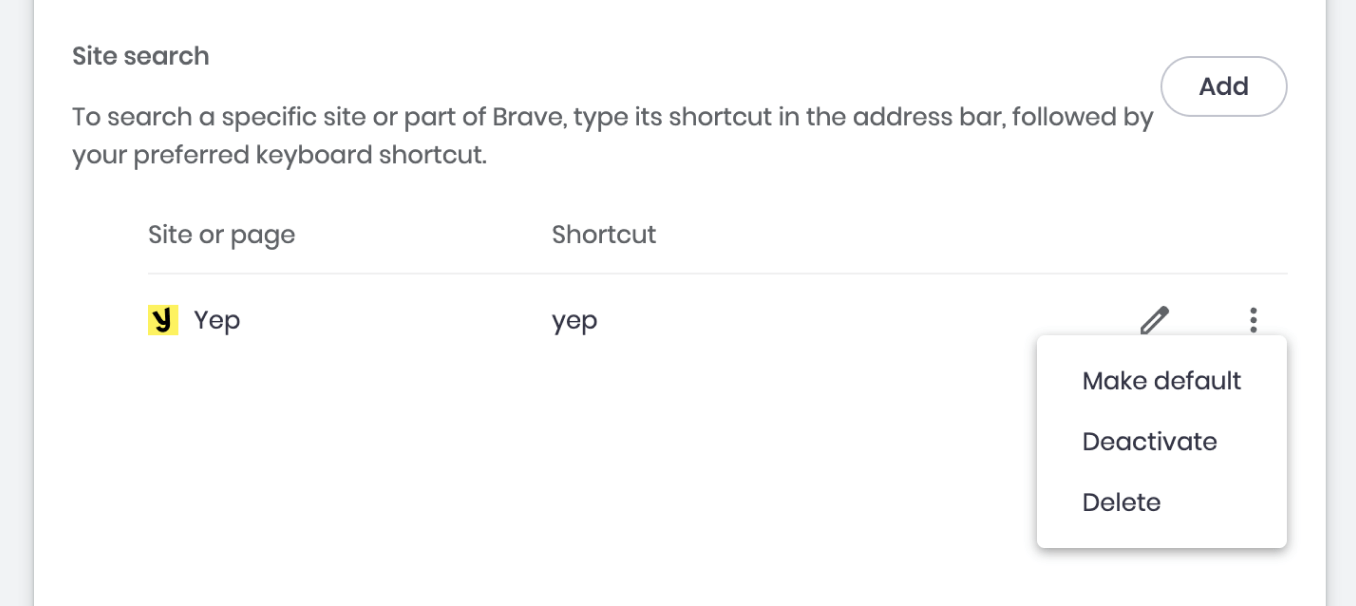
Click Manage search engines and site search and then Add under the “Site search” section.
- Fill out the following details in the form:
Search engine: Yep
Shortcut: yep
URL with %s in place of query: https://yep.com/web?q=%s
- Click the menu icon and then Make default.
Mobile
Unfortunately, you can't select Yep as your default search engine in Opera yet. But if you're an Android user, you can download our official Yep app.
Desktop
You can't select Yep as your default search engine in the desktop version of Opera yet. There's a slight workaround you can use, though:Enter chrome://settings/searchEngines in the address bar. Or, click the menu icon in the top right corner. Then, find and click Go to full browser settings at the bottom of the panel.
click manage search engines and site search under the “search engine” section. then click add under the “site search” section."
Click Add under the “Site search” section and fill out the following details in the form:
Search engine: Yep
Shortcut: yep
URL with %s in place of query: https://yep.com/web?q=%s
- To search in Yep, begin your search queries with the "yep" shortcut.

Mobile
Unfortunately, you can't select Yep as your default search engine in Safari yet. You can add Yep to your iPhone Home Screen, though:Open https://yep.com.
Tap the Share icon at the bottom. Then, find and tap Add to Home Screen.
Tap Add in the popover. A shortcut to Yep will appear on your Home Screen.
Desktop
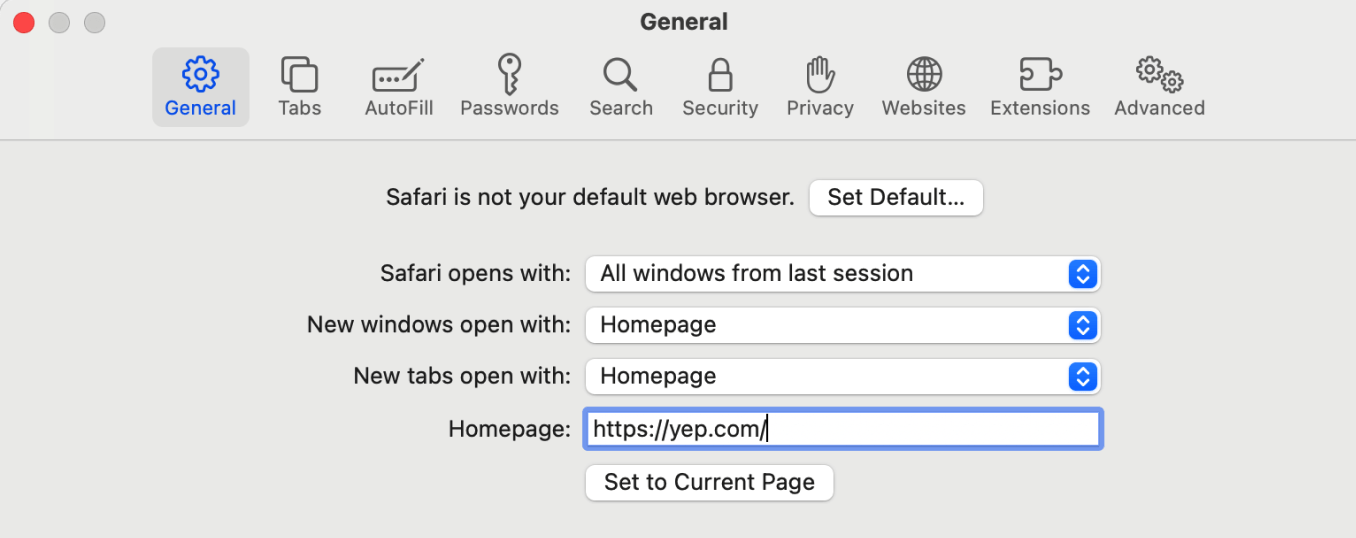
You can't select Yep as your default search engine in the desktop version of Safari yet. You can set Yep as your homepage, though:Open Safari and click Safari › Settings in the menu bar.
- Change the following settings:
New windows open with: Homepage
New tabs open with: Homepage
Homepage: https://yep.com/
- Yep will now be your homepage when you open a new tab, and you'll be able to start searching from there.